Secure PostgreSQL
This guide describes how to secure communication between Sensu and the PostgreSQL event store using certificate authentication. When deploying Sensu for use outside of a local development environment, you should secure it using transport layer security (TLS).
To learn how to secure communications between Sensu and its agents, read Generate certificates for your Sensu installation and Secure Sensu.
NOTE: This guide describes one option for securing communication between Sensu and PostgreSQL and is intended as a starting point. Your organization’s needs may require a different approach.
Prerequisites
To use this guide, you must have:
- A running Sensu deployment.
- A running PostgreSQL instance that you’ve configured according to Scale Sensu Go with Enterprise datastore. The commands in this guide use PostgreSQL version 14.
Install cfssl
The CloudFlare cfssl toolkit is released as a collection of command-line tools.
If you followed Generate certificates for your Sensu installation, you already downloaded and installed the Cloudflare cfssl toolkit. If not, run the following commands:
sudo curl -s -L -o /bin/cfssl https://github.com/cloudflare/cfssl/releases/download/v1.6.2/cfssl_1.6.2_linux_amd64
sudo curl -s -L -o /bin/cfssljson https://github.com/cloudflare/cfssl/releases/download/v1.6.2/cfssljson_1.6.2_linux_amd64
sudo curl -s -L -o /bin/cfssl-certinfo https://github.com/cloudflare/cfssl/releases/download/v1.6.2/cfssl-certinfo_1.6.2_linux_amd64
sudo chmod +x /bin/cfssl*
# Update apt repos
sudo apt-get update
# Install cfssl
sudo apt-get install golang-cfsslTo verify that cfssl is installed, run:
cfssl versionCreate a Certificate Authority (CA)
Follow these steps to create a CA with cfssl and cfssljson:
-
Create
/etc/sensu/tls(which does not exist by default):mkdir -p /etc/sensu/tls -
Navigate to the new
/etc/sensu/tlsdirectory:cd /etc/sensu/tls -
Create the CA:
echo '{"CN":"Sensu Test CA","key":{"algo":"rsa","size":2048}}' | cfssl gencert -initca - | cfssljson -bare ca - -
Define signing parameters and profiles:
echo '{"signing":{"default":{"expiry":"17520h","usages":["signing","key encipherment","client auth"]},"profiles":{"postgresql":{"usages":["signing","key encipherment","server auth","client auth"],"expiry":"4320h"},"backend":{"usages":["signing","key encipherment","client auth"],"expiry":"4320h"}}}}' > ca-config.jsonNOTE: We suggest a 6-month expiry duration for security, but you can use any duration you prefer when you define the
expiryattribute value in the signing parameters.
You should now have a directory at /etc/sensu/tls that contains the following files:
| filename | description |
|---|---|
ca.pem |
CA root certificate. Required for all systems running the Sensu backend or agent. The agent and backend use ca.pem to validate server certificates at connection time. |
ca-key.pem |
CA root certificate private key. |
ca-config.json |
CA signing parameters and profiles. Not used by Sensu. |
ca.csr |
Certificate signing request for the CA root certificate. Not used by Sensu. |
Generate certificate and key for PostgreSQL
Next, generate the certificates you need for PostgreSQL.
This guide assumes your PostgreSQL instance is reachable via a 10.0.0.x IP address, a fully qualified name (for example, postgres.example.com), and an unqualified name (for example, postgres):
| Unqualified name |
IP address | Fully qualified domain name (FQDN) |
Additional names |
|---|---|---|---|
| postgres | 10.0.0.43 | postgres.example.com | localhost, 127.0.0.1 |
The additional names for localhost and 127.0.0.1 are added here for convenience and are not strictly required.
- The values provided for the ADDRESS variable will be used to populate the certificate’s SAN records. For systems with multiple hostnames and IP addresses, add each to the comma-delimited value of the ADDRESS variable.
- The value provided for the NAME variable will be used to populate the certificate’s CN record.
It will also be used in the names for the
*.pemand*.csrfiles.
For example:
export ADDRESS=localhost,127.0.0.1,10.0.0.43,postgres,postgres.example.com
export NAME=postgres.example.com
echo '{"CN":"'$NAME'","hosts":[""],"key":{"algo":"rsa","size":2048}}' | cfssl gencert -config=ca-config.json -profile="postgresql" -ca=ca.pem -ca-key=ca-key.pem -hostname="$ADDRESS" - | cfssljson -bare $NAME
The /etc/sensu/tls directory should now include the following files for your PostgreSQL instance:
| filename | description |
|---|---|
postgres.example.com.pem |
The certificate that your PostgreSQL instance will use. |
postgres.example.com-key.pem |
The private key that your PostgreSQL instance will use. |
postgres.example.com.csr |
Certificate signing request for the PostgreSQL certificate. Not used. |
Generate certificate and key for your Sensu backend
Just like the certificate and key for PostgreSQL, you’ll need a certificate and key for the Sensu backend.
To generate the backend certificate and key, run:
export POSTGRES_USERNAME=sensu
echo '{"CN":"'$POSTGRES_USERNAME'","hosts":[""],"key":{"algo":"rsa","size":2048}}' | cfssl gencert -config=ca-config.json -ca=ca.pem -ca-key=ca-key.pem -hostname="" -profile=backend - | cfssljson -bare $POSTGRES_USERNAME
You’ll also need to change the ownership of the certificate files to the sensu user:
chown -R sensu:sensu /etc/sensu/tlsYou should now have the following files in your /etc/sensu/tls directory, which the Sensu backend will use to communicate with PostgreSQL:
| filename | description |
|---|---|
sensu.pem |
The certificate that your Sensu backend will use. |
sensu-key.pem |
The private key that your Sensu backend will use. |
sensu.csr |
Certificate signing request for the Sensu backend certificate. Not used. |
Now that you have the required certificates and keys, you can configure Sensu to use certificate authentication with PostgreSQL.
WARNING: Once you’ve generated all of your certificates, delete the ca-key.pem file from the /etc/sensu/tls directory.
The ca-key.pem file contains sensitive information and is only needed on your PostgreSQL instance.
Configure Sensu to use certificate authentication with PostgreSQL
NOTE: The Sensu backend uses the libpq library to make connections to PostgreSQL. This library supports a number of environment variables that can be injected into the PostgreSQL data source name (DSN) and are loaded at runtime using the system’s environment variable file. These environment variables allow you to customize the Sensu backend’s PostgreSQL DSN construction to suit your needs.
Working from your Sensu backend, follow these steps to configure Sensu to use certificate authentication with PostgreSQL:
-
Define the environment variables that tell the Sensu backend to use a certificate to authenticate to PostgreSQL:
echo 'PGUSER=sensu
PGSSLMODE="verify-full"
PGSSLCERT="/etc/sensu/tls/sensu.pem"
PGSSLKEY="/etc/sensu/tls/sensu-key.pem"
PGSSLROOTCERT="/etc/sensu/tls/ca.pem"' | sudo tee /etc/sysconfig/sensu-backend
echo 'PGUSER=sensu PGSSLMODE="verify-full" PGSSLCERT="/etc/sensu/tls/sensu.pem" PGSSLKEY="/etc/sensu/tls/sensu-key.pem" PGSSLROOTCERT="/etc/sensu/tls/ca.pem"' | sudo tee /etc/default/sensu-backendDo not restart your backend to load the environment variables yet.
-
Adjust the Sensu datastore connection with sensuctl:
echo 'type: PostgresConfig api_version: store/v1 metadata: name: sensu_postgres spec: dsn: "postgresql://sensu:mypass@postgres.example.com:5432/sensu_events" pool_size: 20 strict: false' | sudo tee postgresconfig.yml sensuctl create -f postgresconfig.ymlNOTE: Setting
strict: falsein the configuration helps ensure that the Sensu backend will remain active and able to process events even in case of a configuration mistake. -
Confirm that the connection to your PostgreSQL instance is healthy:
curl http://localhost:8080/healthThe response should be similar to this example, with
truevalues for bothActiveandHealthy:{ "Alarms": null, "ClusterHealth": [ { "MemberID": 13217573501179607000, "MemberIDHex": "b76e4111d26d35e2", "Name": "sensu.example.com", "Err": "", "Healthy": true } ], "Header": { "cluster_id": 11959078708079102000, "member_id": 6370351775894128000, "raft_term": 4242 }, "PostgresHealth": [ { "Name": "sensu_postgres", "Active": true, "Healthy": true } ] }Now that you’ve confirmed that the Sensu backend can connect to your PostgreSQL instance, you can configure PostgreSQL to use TLS.
Configure PostgreSQL to use TLS
To configure your PostgreSQL instance to use TLS:
-
Copy your PostgreSQL certificate files from your Sensu backend. From the
/etc/sensu/tlsdirectory, run:scp postgres.example.com* postgres.example.com:/home/user scp ca.pem postgres.example.com:/home/user -
From your PostgreSQL instance, create a new directory and move your PostgreSQL certificate files from your Sensu backend:
sudo mkdir /var/lib/pgsql/14/data/tls cd /var/lib/pgsql/14/data/tls cp /home/user/postgres.example.com* /var/lib/pgsql/14/data/tls/ cp /home/user/ca.pem /var/lib/pgsql/14/data/tls/ chown -R postgres:postgres /var/lib/pgsql/14/datasudo mkdir /etc/postgresql/14/main/tls cd /etc/postgresql/14/main/tls cp /home/user/postgres.example.com* /etc/postgresql/14/main/tls/ cp /home/user/ca.pem /etc/postgresql/14/main/tls/ chown -R postgres:postgres /etc/postgresql/14/main/ -
Open the PostgreSQL configuration file
postgresql.confin your code editor and edit the following lines to enable TLS:# vim /var/lib/pgsql/14/data/postgresql.conf # - SSL - ssl = on ssl_ca_file = '/var/lib/pgsql/14/data/tls/ca.pem' ssl_cert_file = '/var/lib/pgsql/14/data/tls/postgres.example.com.pem' ssl_key_file = '/var/lib/pgsql/14/data/tls/postgres.example.com-key.pem'# vim /etc/postgresql/14/main/postgresql.conf # - SSL - ssl = on ssl_ca_file = '/etc/postgresql/14/main/tls/ca.pem' ssl_cert_file = '/etc/postgresql/14/main/tls/postgres.example.com.pem' ssl_key_file = '/etc/postgresql/14/main/tls/postgres.example.com-key.pem'Save your changes and close the file.
-
Open the
pg_hba.conffile in your Linux distribution and add the following lines to configure host-based authentication to accept certificates only when accessing thesensu_eventsdatabase:# /var/lib/pgsql/14/data/pg_hba.conf (file location) # Prevent "postgres" superuser login via a certificate hostssl all postgres ::/0 reject hostssl all postgres 0.0.0.0/0 reject # Rules for Sensu DB connection hostssl sensu_events sensu 0.0.0.0/0 cert# /etc/postgresql/14/main/pg_hba.conf (file location) # Prevent "postgres" superuser login via a certificate hostssl all postgres ::/0 reject hostssl all postgres 0.0.0.0/0 reject # Rules for Sensu DB connection hostssl sensu_events sensu 0.0.0.0/0 certTake care to add the new lines in the positions shown in the following example:
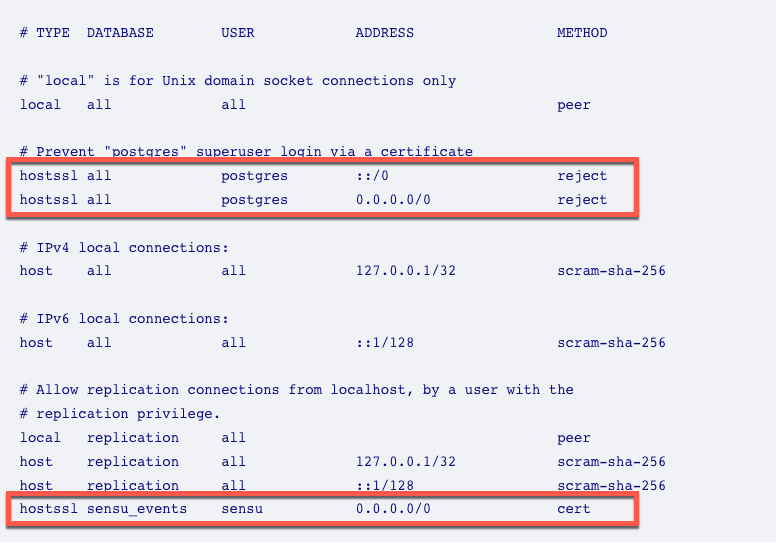
-
Restart PostgreSQL:
sudo systemctl restart postgresql-14.servicesudo systemctl restart postgresql.service
Now that you’ve configured PostgreSQL to use TLS and your Sensu user is required to authenticate with a certificate, complete one final step to ensure that the Sensu backend uses the environment variables set earlier in this guide when constructing the PostgreSQL DSN.
Validate Sensu backend configuration for PostgreSQL
After restarting PostgreSQL, the Sensu user should not be able to communicate with PostgreSQL because it requires certificate authentication for the sensu_events database.
Run:
curl http://localhost:8080/healthThe response should include false values for PostgresHealth.Active and PostgresHealth.Healthy:
{
"Alarms": null,
"ClusterHealth": [
{
"MemberID": 13217573501179607000,
"MemberIDHex": "b76e4111d26d35e2",
"Name": "sensu.example.com",
"Err": "",
"Healthy": true
}
],
"Header": {
"cluster_id": 11959078708079102000,
"member_id": 6370351775894128000,
"raft_term": 4242
},
"PostgresHealth": [
{
"Name": "sensu_postgres",
"Active": false,
"Healthy": false
}
]
}For Sensu to use certificate authentication, you must restart the backend service to load the environment variables set previously:
sudo systemctl restart sensu-backend.serviceTo validate that your Sensu backend can reach PostgreSQL and authenticate after restarting, run the following command:
curl http://localhost:8080/healthThe response should be similar to the following example.
If the Active and Healthy attributes are not both true, stop and troubleshoot your connection to PostgreSQL before you continue:
{
  "Alarms": null,
  "ClusterHealth": [
    {
      "MemberID": 13217573501179607000,
      "MemberIDHex": "b76e4111d26d35e2",
      "Name": "sensu.example.com",
      "Err": "",
      "Healthy": true
    }
  ],
  "Header": {
    "cluster_id": 11959078708079102000,
    "member_id": 6370351775894128000,
    "raft_term": 4242
  },
  "PostgresHealth": [
    {
      "Name": "sensu_postgres",
      "Active": true,
      "Healthy": true
    }
  ]
}Optional step: Require PostgreSQL as event store
To force Sensu to always use PostgreSQL as the event store instead of falling back to etcd if PostgreSQL becomes unavailable, set strict: true in your PostgreSQL configuration file.
If you prefer to use etcd as a fallback, skip this step. Using etcd as a fallback may result in disk quota alarms and etcd unavailability, especially in environments with a large number of events.
To set strict: true in your PostgreSQL configuration file, run:
echo 'type: PostgresConfig
api_version: store/v1
metadata:
  name: sensu_postgres
spec:
  dsn: "postgresql://postgres.example.com:5432/sensu_events"
  pool_size: 20
  strict: true' | sudo tee postgresconfig.yml

sensuctl create -f postgresconfig.yml
Your backend will now use PostgreSQL exclusively for storing events.
To view your PostgresConfig definition and confirm that it is updated, run:
sensuctl dump store/v1.PostgresConfig --format yaml